.png?width=250&height=63&name=InspectTrack-Logo%20(1).png)
Auto Move allows InspectNTrack to automatically update the location of movable equipment when it is scanned at a new location—without asking the user to confirm the change. This feature is designed to speed up inspections for users who routinely relocate equipment during their rounds.
How Standard Scanning Works
Normally, when a user scans a location and then a piece of movable equipment, InspectNTrack checks whether the scanned location matches the equipment’s recorded location.
-
If they don’t match, a pop-up appears showing the last known location and asking whether the user wants to move the equipment.
-
The user must choose Move or Cancel before continuing.
What Auto Move Changes
When Auto Move is enabled:
-
The pop-up confirmation is skipped entirely.
-
The system automatically updates the equipment’s location to the newly scanned location.
-
This creates a much faster workflow for users who intend to reposition equipment throughout an inspection route.
-
Auto Move works both within Routes and within Roam.
How to Enable Auto Move
-
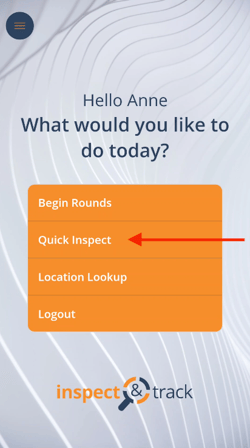
From the app Home screen, select Quick Inspect.
-
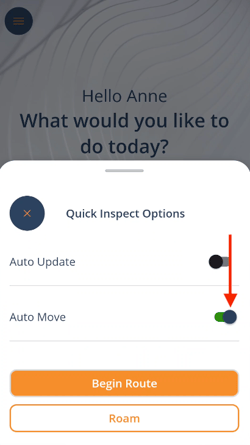
On the Quick Inspect screen, toggle Auto Move to the on position.
-
Press Begin Route or Roam to start inspections.
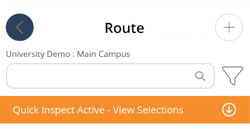
When Auto Move is enabled, an orange bar will appear at the top of the screen to remind the user that the feature is active. Pressing on the down arrow on the orange bar will expose the active selections. Quick Auto Move remains on until the user returns to the Auto Move screen and turns it off.