.png?width=250&height=63&name=InspectTrack-Logo%20(1).png)
Auto Update is a time-saving feature that allows selected tasks to be completed automatically when a checkpoint is scanned—without tapping the screen or answering question sets.
To use Auto Update, a user must belong to a user group with full Auto Update permissions. (Refer to the User Group Documentation for Details)
How to Access Auto Update
-
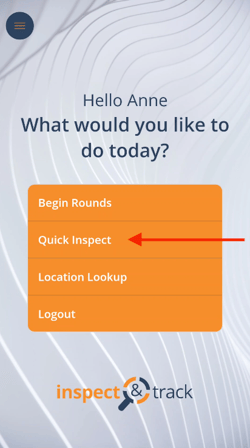
From the app Home screen, select Quick Inspect.
-
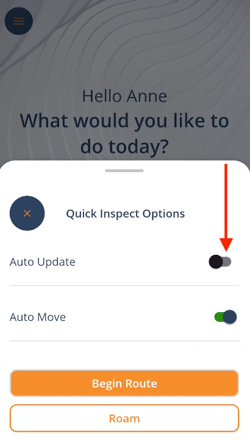
On the Quick Inspect screen, toggle Auto Update to the on position.
-
The Select Tasks screen will open. Scroll the list or use the search box at the top of the screen to select one ore more tasks. Press the Confirm Selection button.
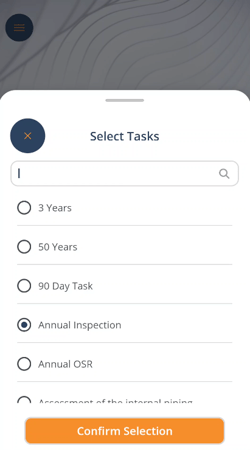
If you have previously used Auto Update, the last used tasks will be pre-selected on the Select Tasks. To deselect a task, tap on it again. To re-open the Select Tasks screen, toggle Auto Update off and back on.
Using Auto Update in Route Inspections
-
After selecting tasks and confirming selections, press Begin Route.
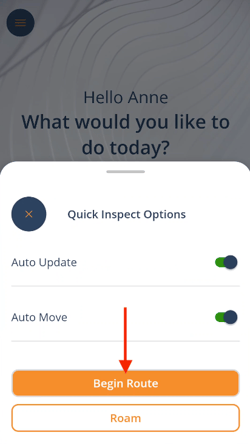
- Tap through to the desired Route and Zone, then begin scanning checkpoints. Each time a checkpoint is scanned, the Task(s) selected for Auto Update will be immediately passed.
Using Auto Update in Roam
-
After selecting tasks and confirming selections, press Roam.
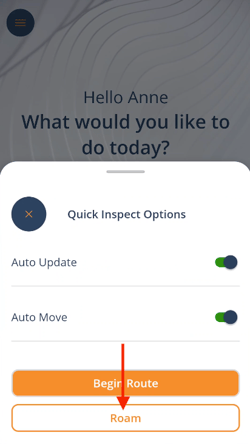
- If more than one option is present, select the customer and division, then begin scanning checkpoints. Each time a checkpoint is scanned, the Task(s) selected for Auto Update will be immediately passed.
Tasks completed via Auto Update are marked with a double asterisk on reports. Any linked question sets are bypassed and do not display on the report.

Auto Update and all selected tasks remain active across sessions until the user returns to Quick Inspect and turns it off or changes task selections.