.png?width=250&height=63&name=InspectTrack-Logo%20(1).png)
Step 1: Factory reset the scanner (only if it was used before). If the scanner was previously set up for another app or device, including the old InspectNTrack app, scan Set Factory Defaults below. If it’s brand new, skip this step.

Step 2. Scan “SSP Bluetooth Classic (Discoverable)”. This puts the scanner in the right paring mode for Windows.
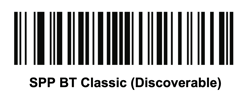
Step 3. Pair the scanner with Windows. Open Windows Settings › Bluetooth & devices, click Add device › Bluetooth, and select the Zebra scanner.
Step 4. Choose the scanner in InspectNTrack. Open InspectNTrack, go to Settings and tap Bluetooth Scanner.
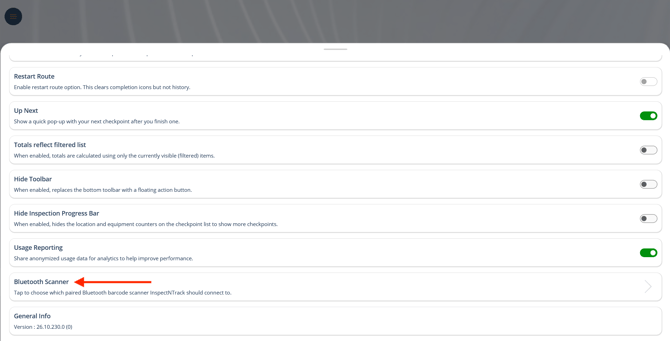
This opens a screen that displays all Bluetooth devices connected to the mobile device. Select your scanner from the list and tap Connect.
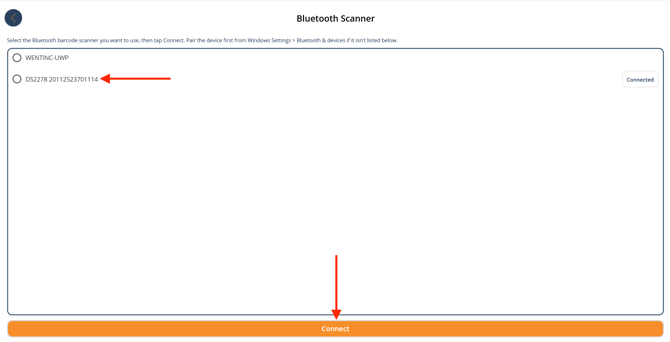
Step 4. Listen for the double beep. The scanner beeps twice when it’s connected, and it shows a Connected tag in the list. You’re ready to scan.
Use only the barcode shown above. The scanner’s user guide lists similar-looking Bluetooth modes (“SSI Bluetooth Classic” and “HID Bluetooth Classic”). They won’t work correctly with InspectNTrack on Windows: the scanner may disconnect after a few seconds, or type the barcode as text instead of sending it to the app.
You only need to choose the scanner once. InspectNTrack remembers it and reconnects automatically every time you open the app.