.png?width=250&height=63&name=InspectTrack-Logo%20(1).png)
Step 1: Factory reset the scanner (only if it was used before). If the scanner was previously set up for another app or device, scan Set Factory Defaults below. If it’s brand new, skip this step.

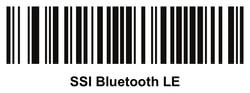
Step 2. Scan “SSI Bluetooth Classic (Discoverable)”. This puts the scanner in the right paring mode for Android.
Step 3. Pair the scanner with your phone or tablet. Open the device’s Settings › Bluetooth (or Connected devices), tap Pair new device, and select the Zebra scanner from the list.
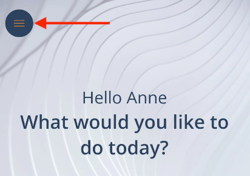
Step 4. Open InspectNTrack and Login. On the home screen, swipe to the right or press the menu button to open the side menu.
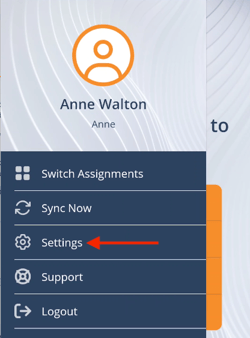
Step 5. Press Settings. This will open the full settings menu.
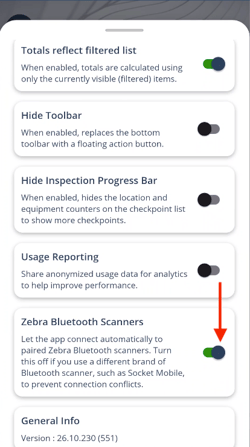
Step 6. Scroll down to Zebra Bluetooth Scanners. Slide the toggle on. The app will now automatically connect to any Zebra scanner that is paired to the device in the manner described in steps 1 - 3.
Step 7. Close the Settings Menu. Swiped down to close the Settings Menu. Use the home screen to Begin Rounds or Quick Inspect.Scan a checkpoint and the scanner will work right away.
Important: Step 3 is required on Android. If the scanner isn’t paired in the device’s Bluetooth settings first, InspectNTrack won’t be able to find it.