.png?width=250&height=63&name=InspectTrack-Logo%20(1).png)
Roam Update allows users to perform ad-hock scanning of checkpoints without the guidance or structure of working within a Zone.
Unique features of Roam include:
- Movable equipment can be scanned directly, without scanning a location first.
- Equipment which is not downloaded onto the device can be updated. The scans are logged with Auto Update/Auto Move selections and updated during synchronization.
- Inactive equipment can be scanned.
Efficient times to use Roam:
- When scanning fire extinguishers in from service. Auto Update passes the maintenance task while Auto Move relocates the equipment, all with a single scan.
- When using Incidents to reactivate InActive equipment.
- When updating inspections on movable equipment without location verification.
- When users want the freedom to scan in a self-directed manner and don't require zone validation.
How to Access Roam
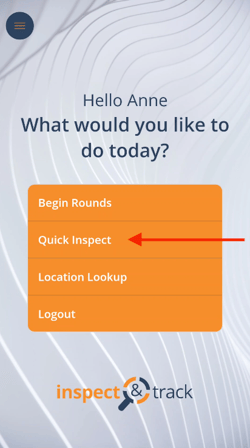
- From the app Home screen, select Quick Inspect.
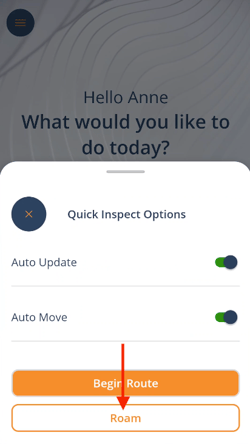
- On the Quick Inspect screen, make any desired selections for Auto Update and Auto Move. Then press Roam.
How to Use Roam
-
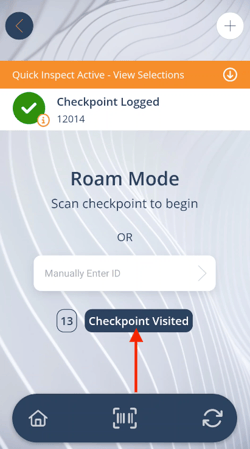
From the Roam screen, scan any checkpoint barcode.
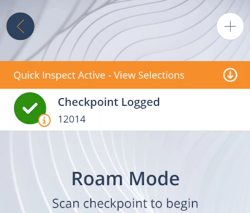
- If the checkpoint is not downloaded onto the device, the banner at the top of the screen will say Checkpoint Logged. Nothing further can be done and the checkpoint will be updated and added to the report upon synchronization.
- If the checkpoint is downloaded onto the device, the banner at the top of the screen will say Checkpoint Updated. It will also show a small arrow on the right side of the banner. Clicking on the arrow will navigate the user into the equipment details screen for the checkpoint. On this screen, the user can validate the task that was Auto Updated, edit the results, answer the question set, etc. Then press the back arrow to return to the Roam screen.
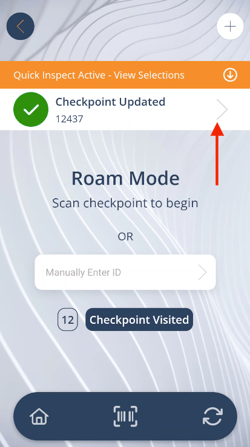
- There is a running count on the screen that displays the number of scanned checkpoints.
- The Checkpoint Visited button opens a screen that displays a list of all checkpoints that have been scanned.
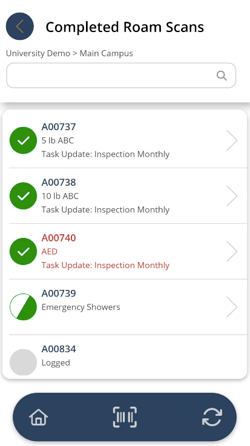
- From this screen, checkpoints that are downloaded show their task completion status icon, and show an arrow that can navigate the user into the Equipment Details screen. Checkpoints that are not downloaded do not show completion status and nothing further can be done with them.