.png?width=250&height=63&name=InspectTrack-Logo%20(1).png)
The Signature Capture feature allows inspectors to collect signatures from both the person performing the inspection and/or the customer, providing verification and audit documentation that an inspection occurred at a specific location.
How to Capture Signatures
-
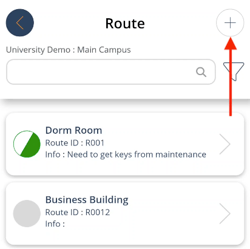
From the Route or Zone screen, press the + icon in the top, right corner.
-
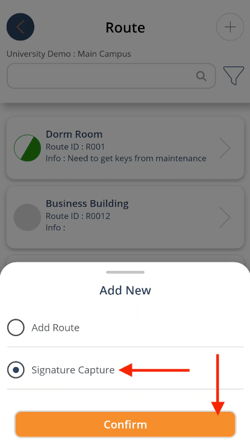
Tap Signature Capture then press Confirm Selection.
-
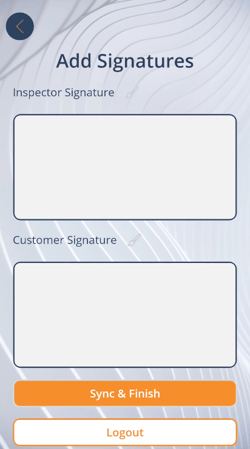
Use a finger or stylus to sign in the appropriate signature field(s).
-
Tap Sync & Finish to finish the route, or Logout to logout without syncing (not recommended).
-
Use the back arrow to return to the app without saving the signatures.
All saved signatures automatically appear on the Tour Report and History Report. They can also be enabled on the Executive Management Report.
Note: Signatures print in date-time order with the rest of the report, so it is best to add them at the very end of your inspection tour.