.png?width=250&height=63&name=InspectTrack-Logo%20(1).png)
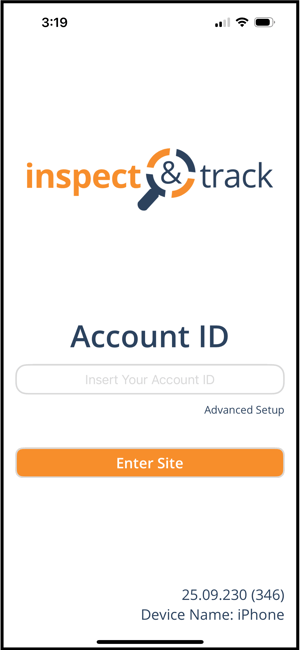
The first time you login the the InspectNTrack mobile app after it has been installed you must enter your Account ID. Do not utilize the Advanced Setup link unless instructed to do so by InspectNTrack support. After entering the Account ID, press Enter Site.
Credentials Sign On
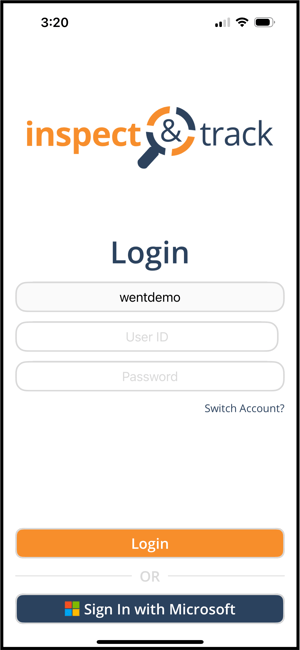
To sign in with system credentials, enter your User ID and Password into the appropriate boxes, then press Login.
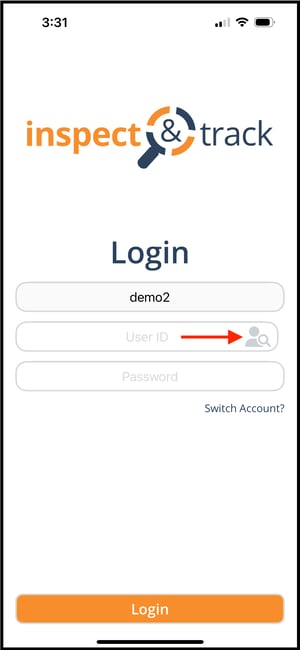
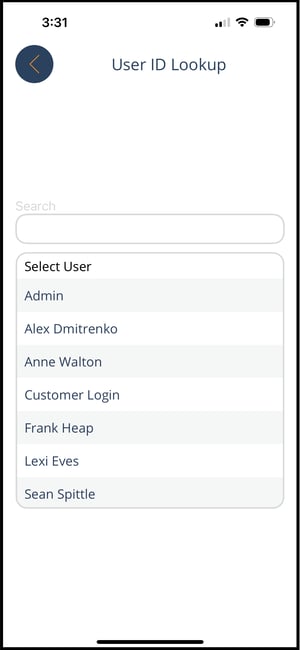
As a shortcut, press the user search icon in the User ID field. This will open a user lookup screen. Find your name on the list and tap it to have your user ID automatically entered into the User ID field.
Single Sign On
If your company has single sign on enabled, you will see a Sign In with Microsoft button. Do not enter information into the User ID or Password boxes. Instead press the blue button and complete the login through the Microsoft screen.