.png?width=250&height=63&name=InspectTrack-Logo%20(1).png)
The InspectNTrack app has a default toolbar which is available at the bottom of the screen. It always displays a home button and a sync button, and it displays a scan button on each screen where scanning is allowed. This toolbar is useful for users who scan via the device camera.
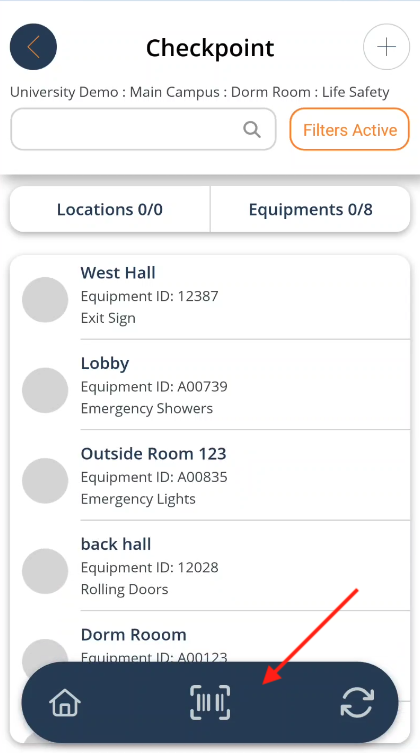
If you utilize a mobile computer or bluetooth scanner, you may prefer to hide the toolbar. You can hide the toolbar as follows:
-
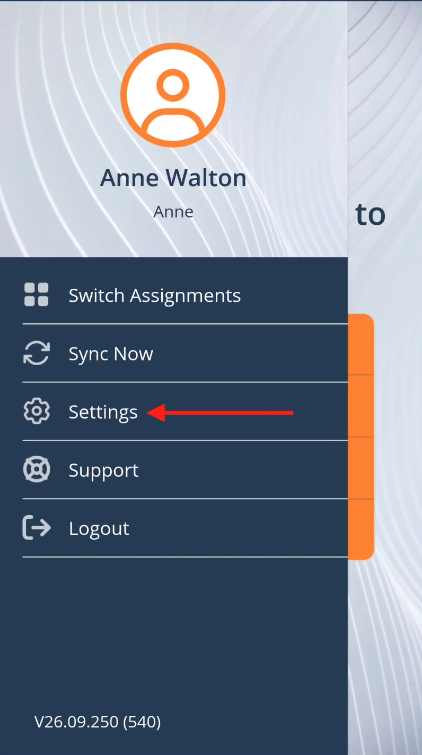
From the app home screen, tap the menu icon or swipe right on the screen to open the app main menu.
- Tap on Settings
- Scroll down to the feature titled "Hide Toolbar". Toggle this setting to the on position.
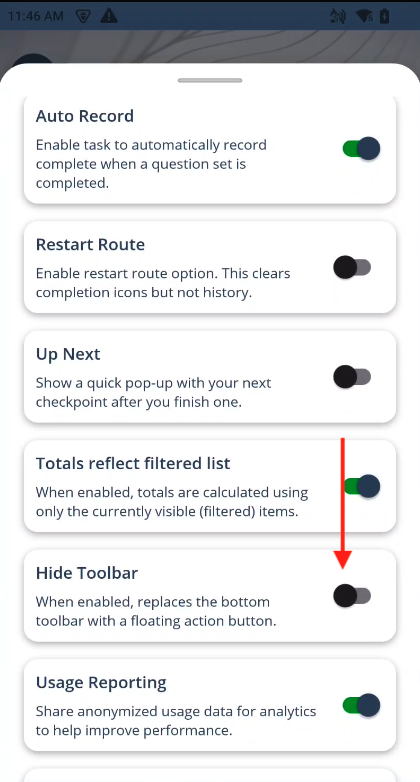
- Swipe down to close the settings menu, then swipe right to close the main menu.
- On the home screen, press Begin Rounds.
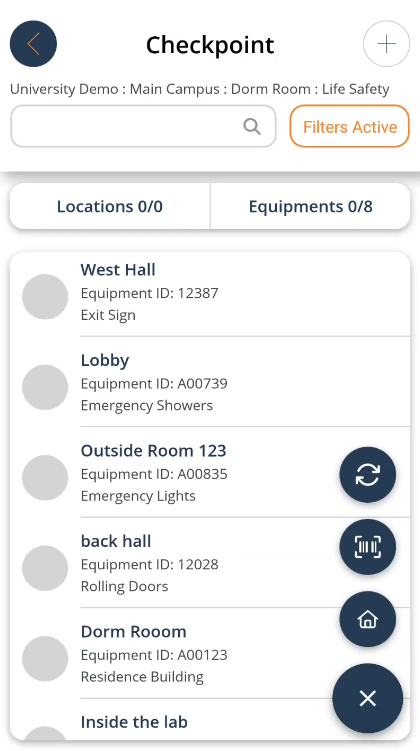
- The hidden toolbar displays a + icon at the bottom of the screen. Press this icon at any time to display action buttons.
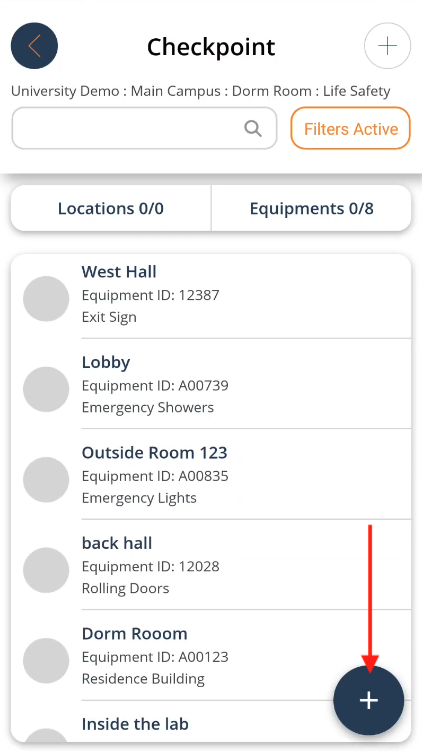
- Press the icon again to close and hide buttons.